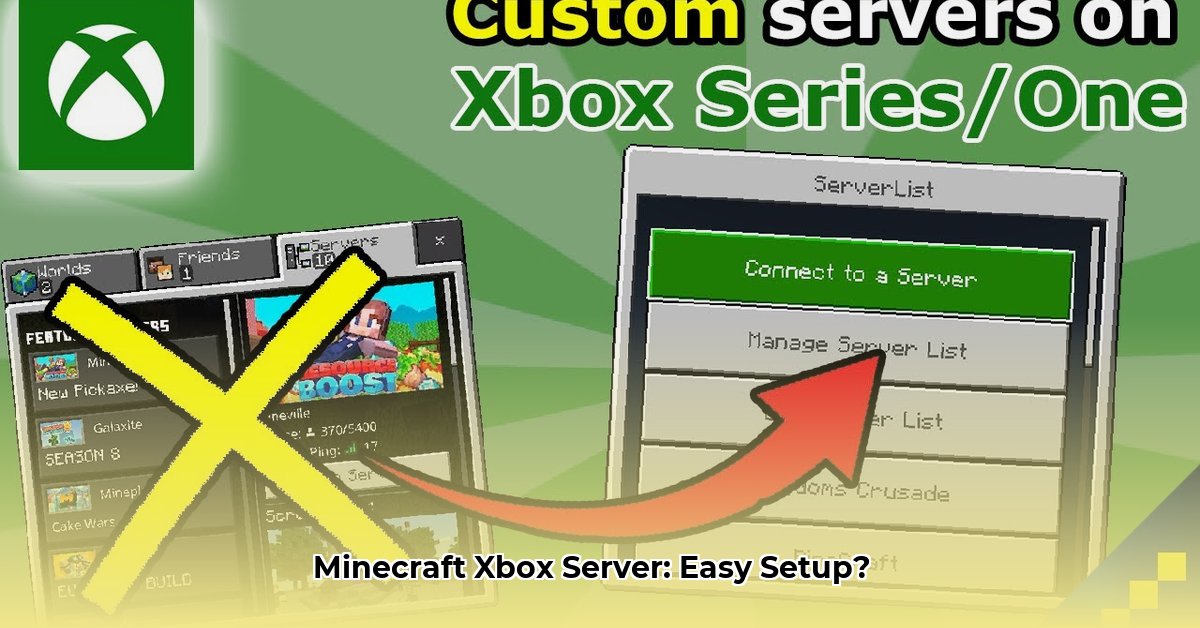
Ready to create your own Minecraft world and invite friends to join? This guide will walk you through setting up a dedicated Minecraft Bedrock server, compatible with Xbox and other Bedrock devices, on both Windows and Ubuntu (Linux). We'll cover everything from downloading to configuration and troubleshooting. For additional downloads, check out the official Bedrock downloads.
Getting Started: System Requirements
Before you begin, ensure your computer meets these minimum requirements. More RAM and a faster processor will result in a smoother gaming experience.
| Operating System | Minimum RAM (Memory) | Recommended RAM (Memory) | Processor (CPU) | Storage Space (Hard Drive) |
|---|---|---|---|---|
| Windows | 4 GB | 8 GB | 2 GHz Quad-Core | 10 GB Free Space |
| Ubuntu | 4 GB | 8 GB | 2 GHz Quad-Core | 10 GB Free Space |
Downloading the Minecraft Bedrock Server Files
First, you need the server files from the official Minecraft website.
- Navigate to the Downloads: Go to the official Minecraft website and locate the Bedrock Server downloads.
- Select Your Version: Choose the correct version for your operating system (Windows or Linux).
- Save the File: Save the downloaded file to a location you can easily find (e.g., a new folder named "Minecraft Server").
Setting Up Your Server on Windows
Here's how to set up your server on a Windows machine.
- Extract the Files: Unzip (or extract) the downloaded file. You'll find
bedrock_server.exe. - Run the Server: Double-click
bedrock_server.exeto start the server. A console window will appear, displaying server information. - Configure
server.properties: The server creates aserver.propertiesfile. Open this file (using Notepad or a similar text editor) to adjust settings such as game mode (Survival, Creative, Adventure), difficulty, and maximum players. - Port Forwarding (Important!): To allow players outside your local network to connect, you'll need to forward port 19132 (the default Minecraft Bedrock server port) on your router. Consult your router's documentation for instructions.
- Start the Server: Once configured, you can start the server from the console window.
Setting Up Your Server on Ubuntu (Linux)
Setting up the server on Ubuntu requires using the command line.
- Download the Server: Download the Linux version of the server files.
- Extract the Files: Extract the downloaded archive using the
tarcommand. For example:tar -xzvf minecraft-server-1.19.XX.tar.gz(replace1.19.XXwith the actual version number). - Open Terminal: Open a terminal window.
- Navigate to the Server Directory: Use the
cdcommand to navigate to the directory containing the extracted server files. Example:cd path/to/your/minecraft-server-directory. - Make the Server Executable: Type
chmod +x bedrock_serverand press Enter. This grants the server file execution permissions. - Run the Server: Execute the server using
./bedrock_server. The server output will appear in the terminal. If you encounter anLD_LIBRARY_PATHerror, try:LD_LIBRARY_PATH=. ./bedrock_server. This helps the system locate necessary libraries. - Configure
server.properties: Edit theserver.propertiesfile (using a text editor likenano) to customize server settings. - Port Forwarding: Remember to configure your router's port forwarding settings (port 19132).
Customizing Your Server: server.properties Explained
The server.properties file lets you personalize your Minecraft world. You can adjust:
- Gamemode: Survival, Creative, Adventure, Spectator.
- Difficulty: Peaceful, Easy, Normal, Hard.
- Level-type: Choose different world generation types (e.g., flat, large biomes).
- Max-players: Set the maximum number of players allowed on the server.
Troubleshooting Common Issues
- Connection Problems: Check your port forwarding settings, firewall rules, and ensure you are using the correct server IP address.
- Server Crashes: Examine the server log files (usually found in the server directory) for error messages that indicate the cause of the crash.
- Permission Errors (Ubuntu): Ensure you have the correct file permissions. Use
chmodcommands in the terminal to adjust permissions if needed. Online resources can guide you through this process if you are unfamiliar with Linux permissions.
Conclusion
By following these steps, you will successfully set up your own Minecraft Bedrock server. Remember to consult the official Minecraft documentation and community forums for further assistance and advanced configuration options. Enjoy your custom Minecraft world!
⭐⭐⭐⭐☆ (4.8)
Download via Link 1
Download via Link 2
Last updated: Monday, April 28, 2025